> ## Documentation Index
> Fetch the complete documentation index at: https://telr-docs.cashfree.com/llms.txt
> Use this file to discover all available pages before exploring further.
# KYC Links
With KYC Links, you can create a form to verify the KYC information of your users digitally. Businesses can start using the solution from day 1 rather than waiting for days for an API based solution. Without any integration or technical effort, you can send the verification form link via email, SMS, or WhatsApp using our APIs embedded on your application or through our dashboard.
## Why KYC Links
* **Seamless Onboarding**
Merchants can verify user identity of their customers with KYC Links without the need of a verification expertise. This speeds up the onboarding process for the merchants, enhances the accuracy, and reduces drop-off during the verification process.
* **Digital Verification**
Merchants have the option to create a verification form link and send it to the users via email, SMS, or WhatsApp. Merchants can verify bank account information, PAN, Aadhaar, and UPI.
* **India's 1st no code solution for KYC digital verification**
Telr becomes the first company to create a solution for businesses without any code or integration effort to use the solution. Merchants can start using KYC Links right away for verification purposes.
***
## Download Sample File - Verification Forms
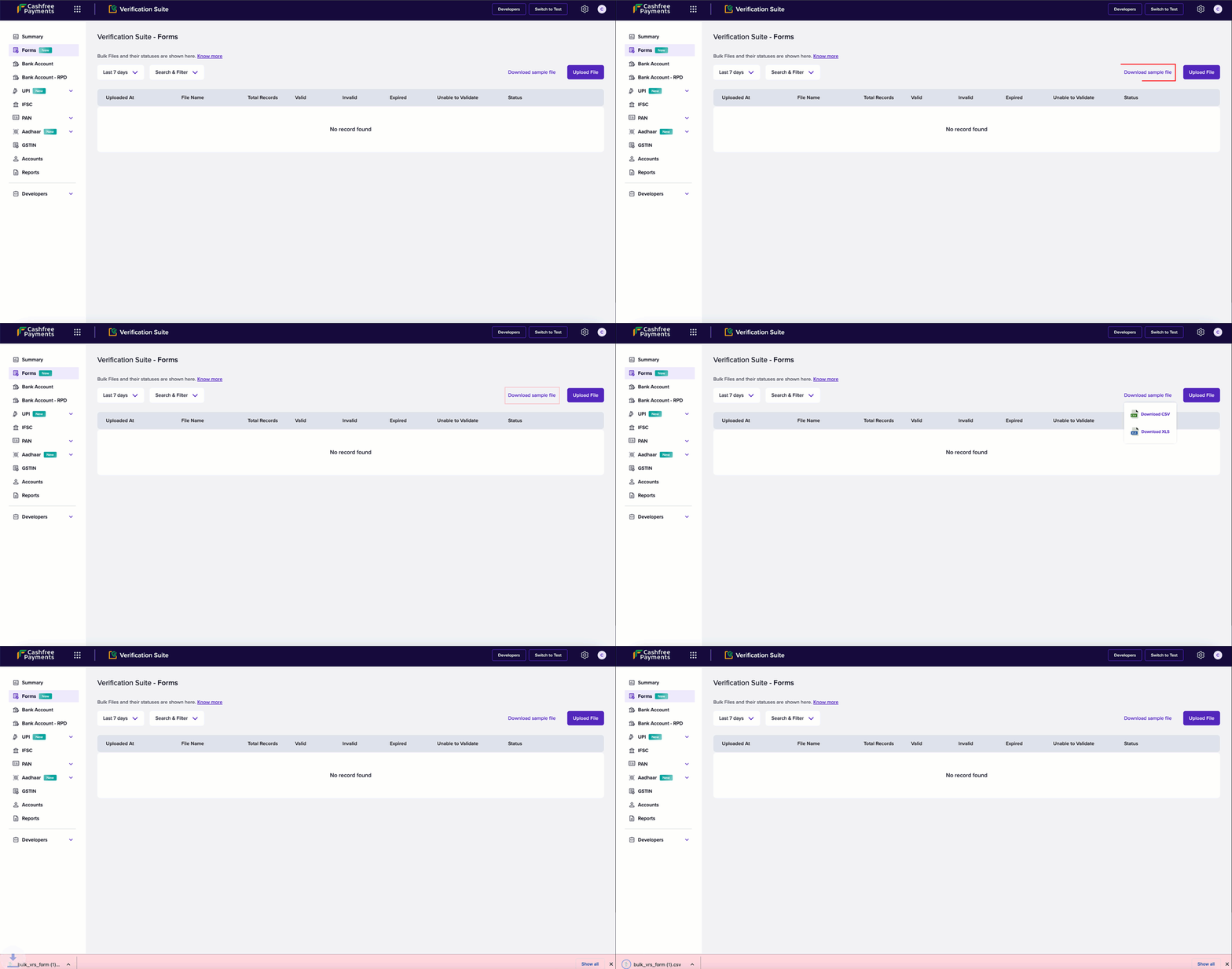
Follow the instructions below to download the sample file:
1. From the **Verification Suite** dashboard, click **Forms**.
2. Click **Download sample file** > choose the format that suits you from the dropdown.
3. The file is downloaded to your local drive. Use the sample file to edit it with the customer details.
 ***
## Upload Batch Form File
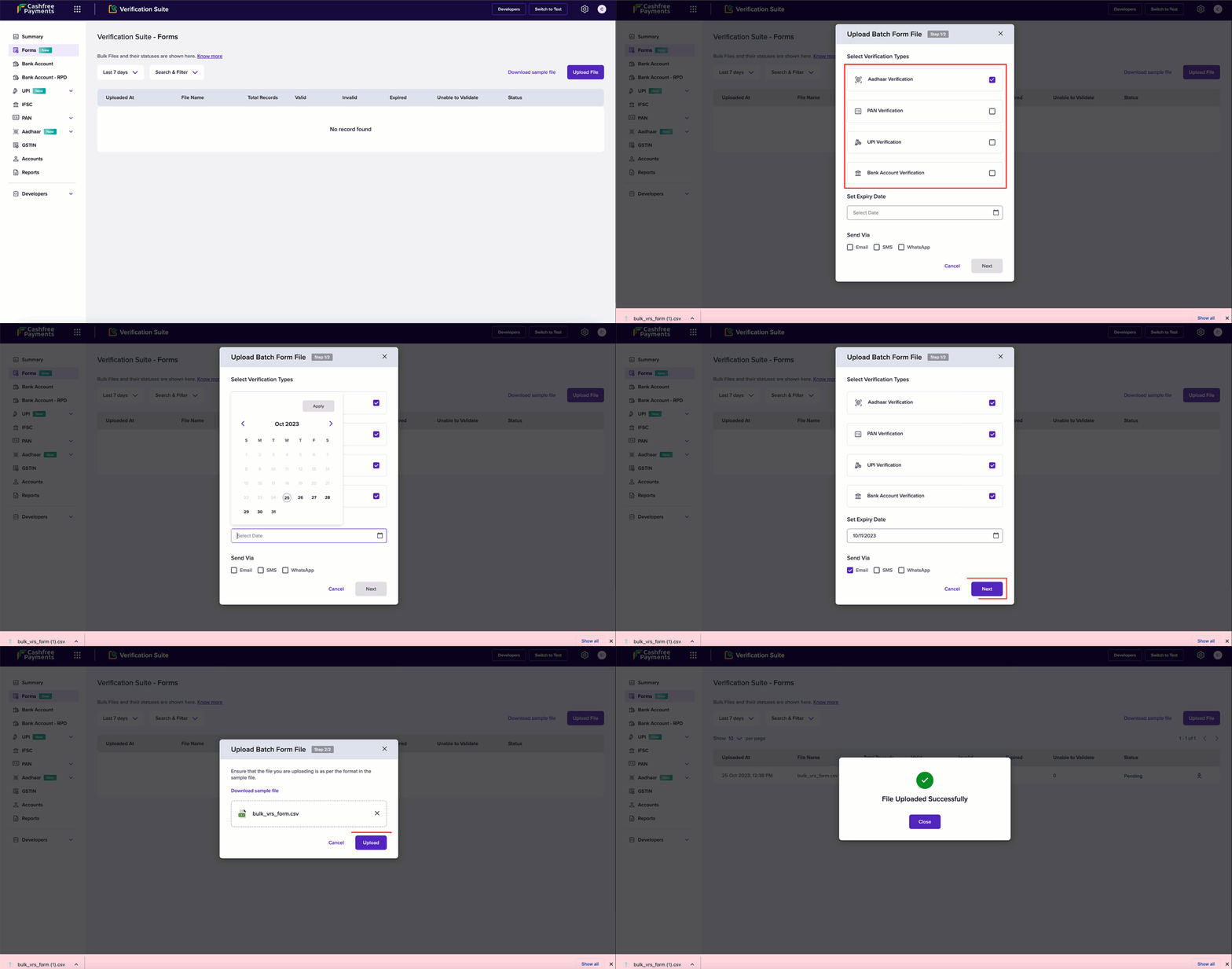
Follow the instructions below to upload the batch form file:
1. Login to the **Verification Suite** dashboard using your credentials, and click **Forms** on the left navigation pane.
2. From the **Verification Suite - Forms** screen, click **Upload File**.
3. In the **Upload Batch Form File** popup, fill in the following details:
* **Select Verification Types** - Use the checkbox to select the verification type that you wish your customers to digitally verify.
* **Set Expiry Date** - Click the field to select an expiry date for the verification form.
* **Send Via** - Use the checkbox to determine how you want to send the form to your customers.
4. Click **Next**.
5. Click **Choose a file** to upload the file with the customer details.
> 📘 You can download the sample file if you had not already by clicking **Download sample file** in this popup.
6. Once the upload is complete, click **Upload**.
7. The batch verification form with the customer details is uploaded.
***
## Upload Batch Form File
Follow the instructions below to upload the batch form file:
1. Login to the **Verification Suite** dashboard using your credentials, and click **Forms** on the left navigation pane.
2. From the **Verification Suite - Forms** screen, click **Upload File**.
3. In the **Upload Batch Form File** popup, fill in the following details:
* **Select Verification Types** - Use the checkbox to select the verification type that you wish your customers to digitally verify.
* **Set Expiry Date** - Click the field to select an expiry date for the verification form.
* **Send Via** - Use the checkbox to determine how you want to send the form to your customers.
4. Click **Next**.
5. Click **Choose a file** to upload the file with the customer details.
> 📘 You can download the sample file if you had not already by clicking **Download sample file** in this popup.
6. Once the upload is complete, click **Upload**.
7. The batch verification form with the customer details is uploaded.