> ## Documentation Index
> Fetch the complete documentation index at: https://telr-docs.cashfree.com/llms.txt
> Use this file to discover all available pages before exploring further.
# Smart Limits
We provide our merchants with the upper hand to control the transfer amount and disable processing transfers at a scheduled time to mitigate any risk.
## Configure amount limits
Follow the instructions below to configure transfer amount:
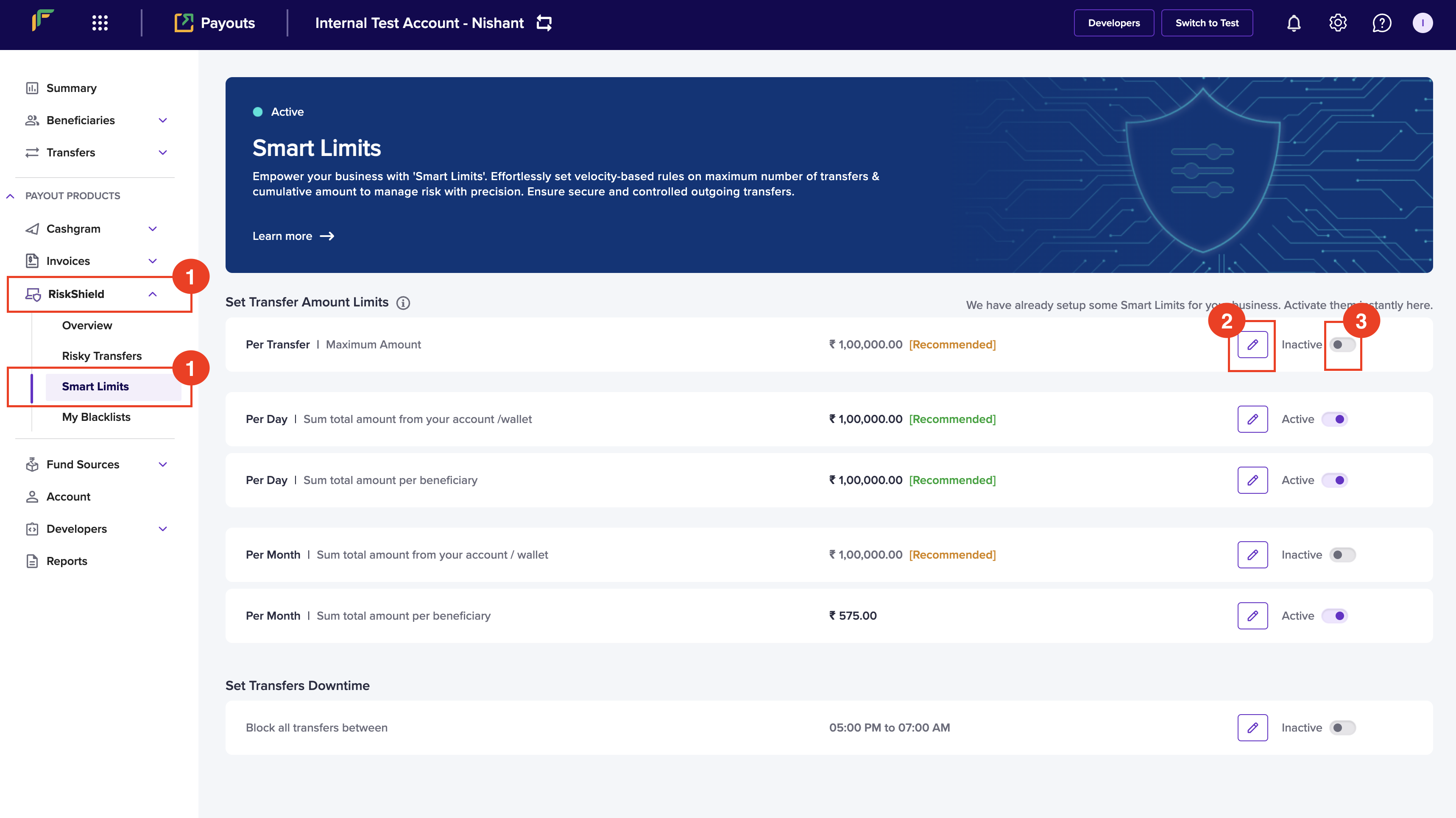
1. Once you login to your Payouts dashboard using the credentials, navigate to **Payout Protect** > **Smart Limits**.
2. Click the **Edit** icon to configure the following information:
* **Per Transfer** - Enter the maximum amount that is allowed per transaction.
* **Per Day** - Enter the allowed total sum of money for transfers from your account/wallet within a day. The day begins at 00:00:00 and ends at 23:59:59 hours.
* **Per Day** - Enter the allowed total sum of money for transfers within a day for a beneficiary. The day begins at 00:00:00 and ends at 23:59:59 hours.
* **Per Month** - Enter the allowed total sum of money for transfers from your account/wallet within a month.
* **Per Month** - Enter the allowed total sum of money for transfers for a beneficiary within a month.
3. Switch the toggle to activate or deactivate the smart limit.
 ***
## Configure downtime
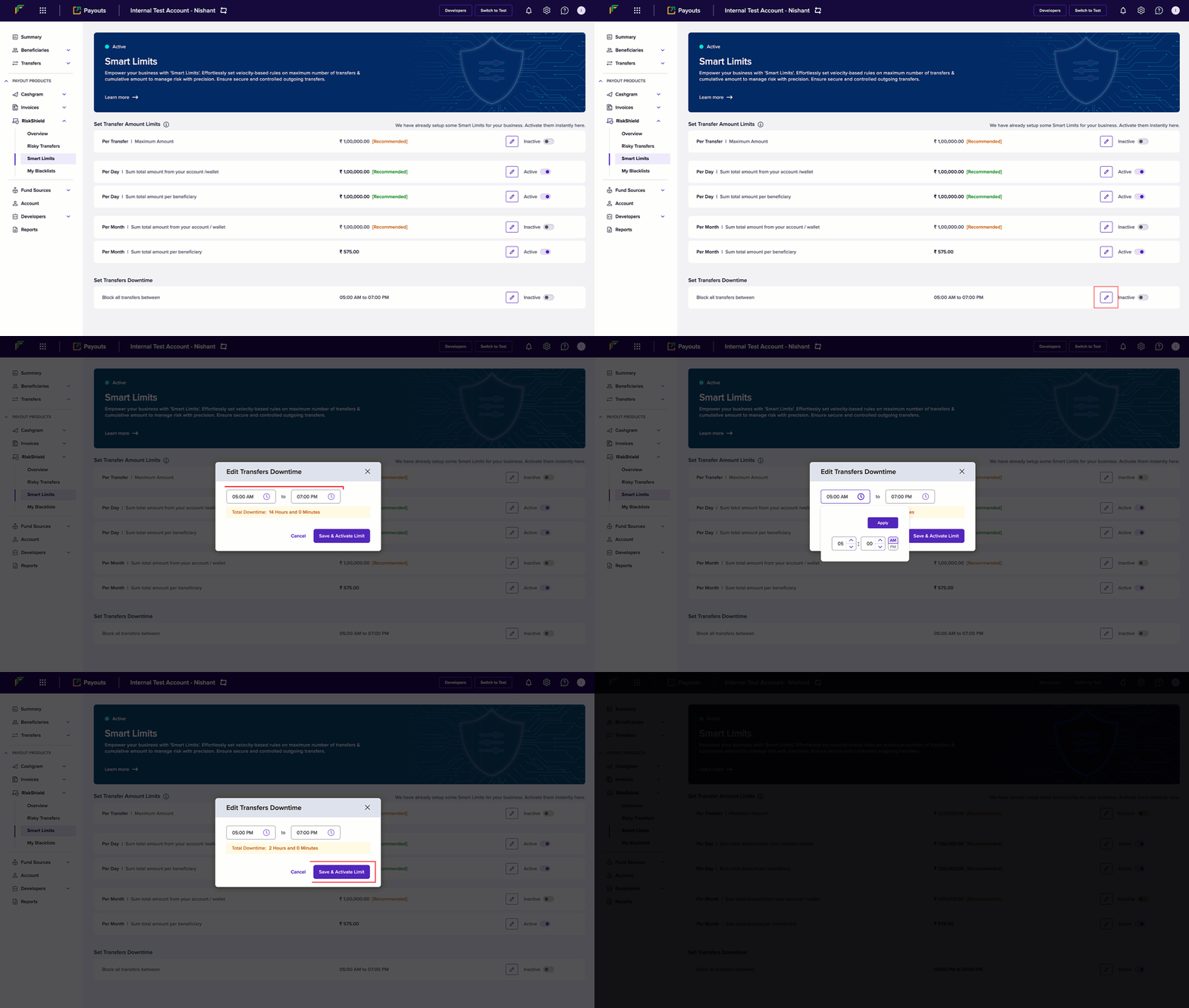
You can configure a specific time when you don't want to allow any payouts. Follow the instructions below to schedule a time that blocks transfers:
1. Once you login to your Payouts dashboard using the credentials, navigate to **Payout Protect** > **Smart Limits** > **Set Transfers Downtime**.
2. Click the **Edit** button.
3. Configure the start and end time in the *Edit Transfers Downtime* popup.
4. Click **Save & Activate Limit**.
***
## Configure downtime
You can configure a specific time when you don't want to allow any payouts. Follow the instructions below to schedule a time that blocks transfers:
1. Once you login to your Payouts dashboard using the credentials, navigate to **Payout Protect** > **Smart Limits** > **Set Transfers Downtime**.
2. Click the **Edit** button.
3. Configure the start and end time in the *Edit Transfers Downtime* popup.
4. Click **Save & Activate Limit**.