> ## Documentation Index
> Fetch the complete documentation index at: https://telr-docs.cashfree.com/llms.txt
> Use this file to discover all available pages before exploring further.
# Managing Virtual Bank Accounts
This guide explains how to create a Virtual Bank Account (VBA), set up notification groups to receive payment updates, and view VBA payment details.
Prerequisites:
Before you begin, ensure:
* You have an **active Telr Payment Gateway account**
* The **VBA payment method** is enabled
If you are a new user, [click here](https://telr.cashfree.com/merchants/signup) to sign up with **Cashfree Payments**.
## Creating a VBA
To create a VBA:
1. Log in to the **[merchant dashboard](https://telr.cashfree.com/merchants)** with your credentials.
2. Click **Payment Gateway**.
3. Navigate to **VBA Configuration > VBA Accounts**.
4. Click **Create Virtual Account**.
5. Enter the required details in the modal and click **Save**.
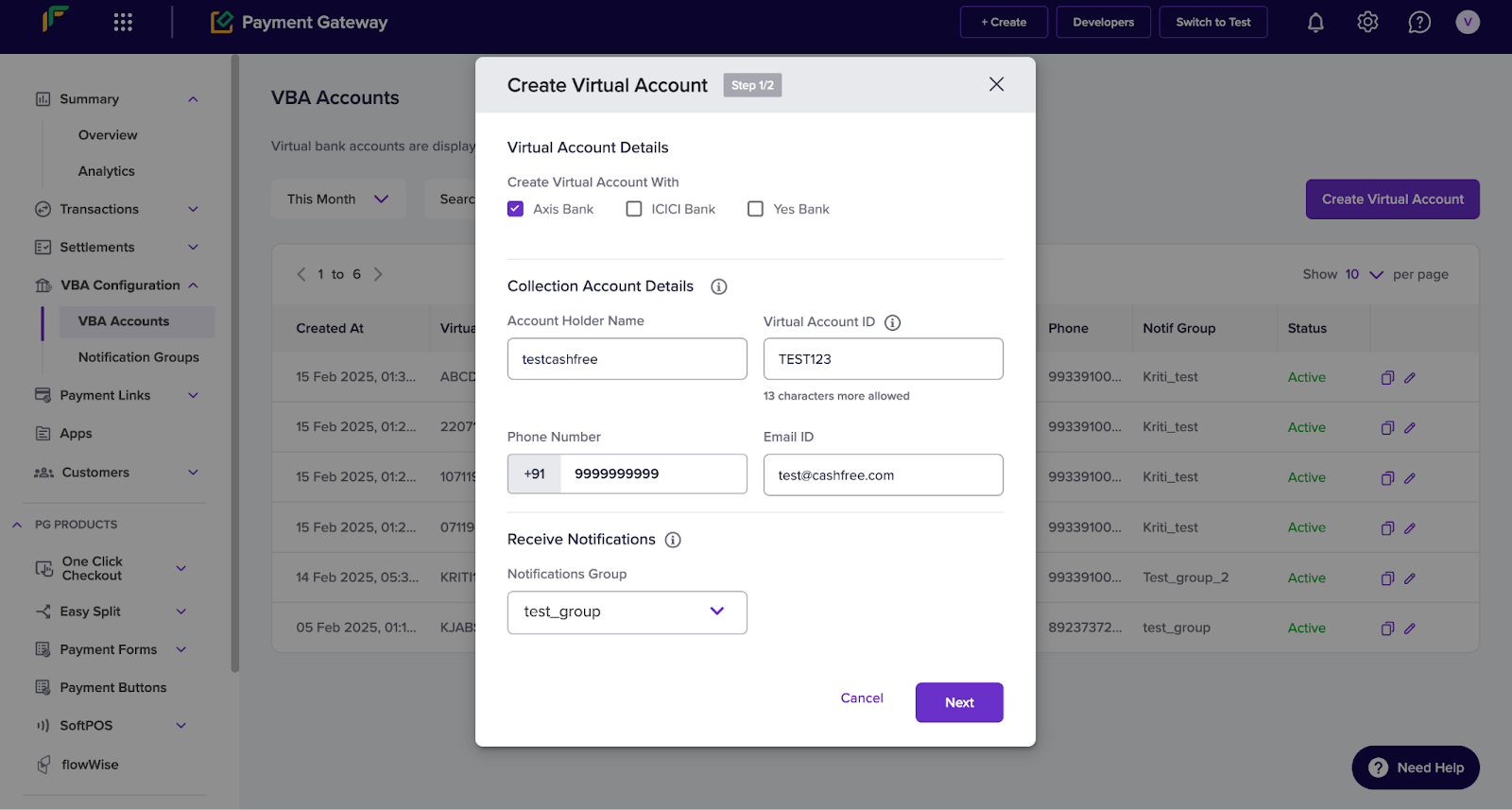 Note: *(Optional)* Enable **Remitter Lock (TPV)** to restrict payments to specific accounts and set transaction limits.
The **VBA Accounts** page displays all VBAs. You can **copy details, update notifications, or deactivate accounts** from this page.
## Viewing VBA payments
To view payments related to VBAs:
1. Log in to the **[merchant dashboard](https://telr.cashfree.com/merchants)** with your credentials.
2. Click **Payment Gateway**.
3. Navigate to **Transactions > Payments**.
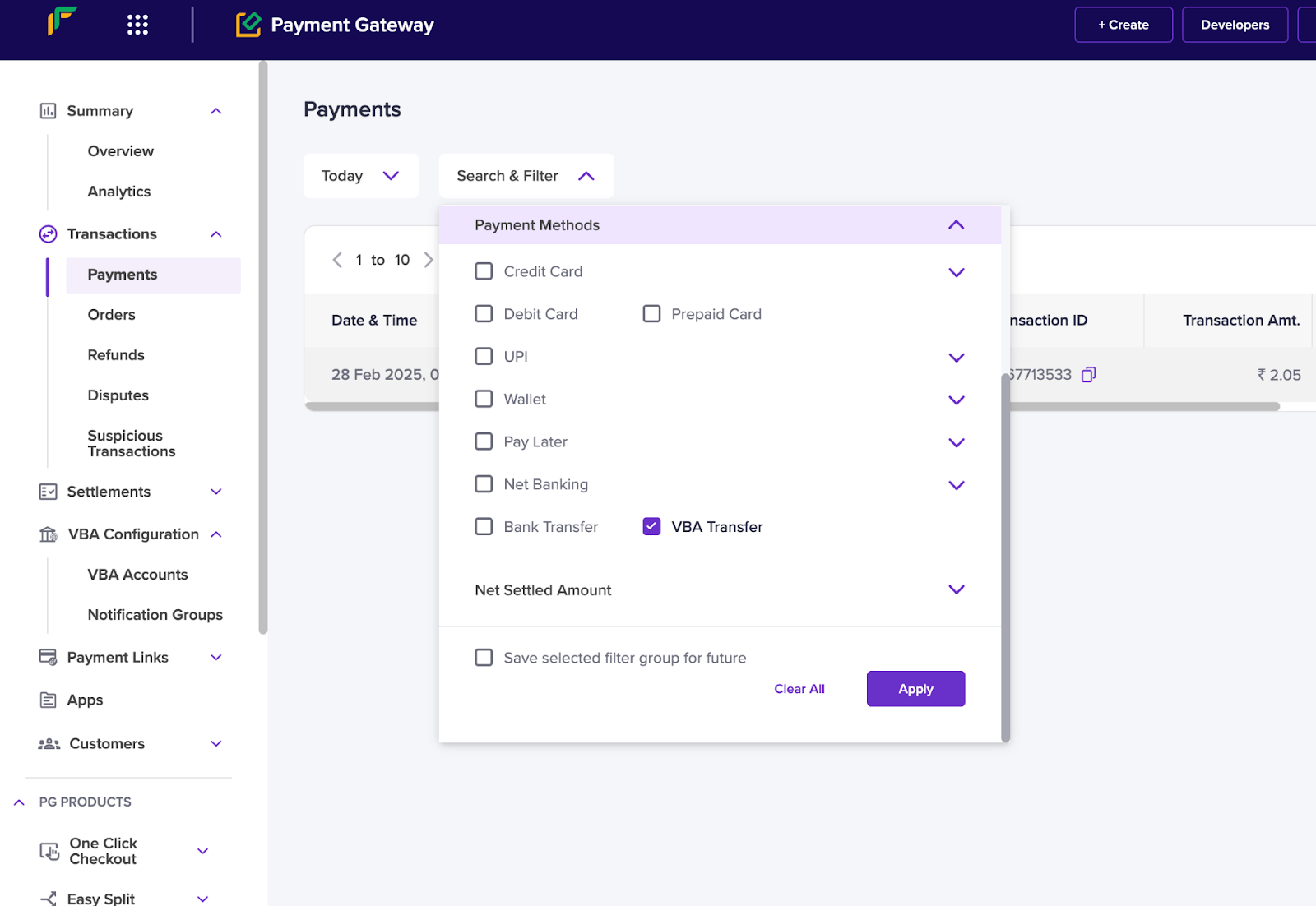
4. Click on the **Search & Filter** drop-down.
5. Select **VBA Transfer** under the **Payment Methods** filter. This displays all transactions processed through **VBAs**.
Note: *(Optional)* Enable **Remitter Lock (TPV)** to restrict payments to specific accounts and set transaction limits.
The **VBA Accounts** page displays all VBAs. You can **copy details, update notifications, or deactivate accounts** from this page.
## Viewing VBA payments
To view payments related to VBAs:
1. Log in to the **[merchant dashboard](https://telr.cashfree.com/merchants)** with your credentials.
2. Click **Payment Gateway**.
3. Navigate to **Transactions > Payments**.
4. Click on the **Search & Filter** drop-down.
5. Select **VBA Transfer** under the **Payment Methods** filter. This displays all transactions processed through **VBAs**.
 ## Creating a notification group
To create a **notification group**:
1. Log in to the **[merchant dashboard](https://telr.cashfree.com/merchants)** using your credentials.
2. Click **Payment Gateway**.
3. Navigate to **VBA Configuration > Notification Groups**.
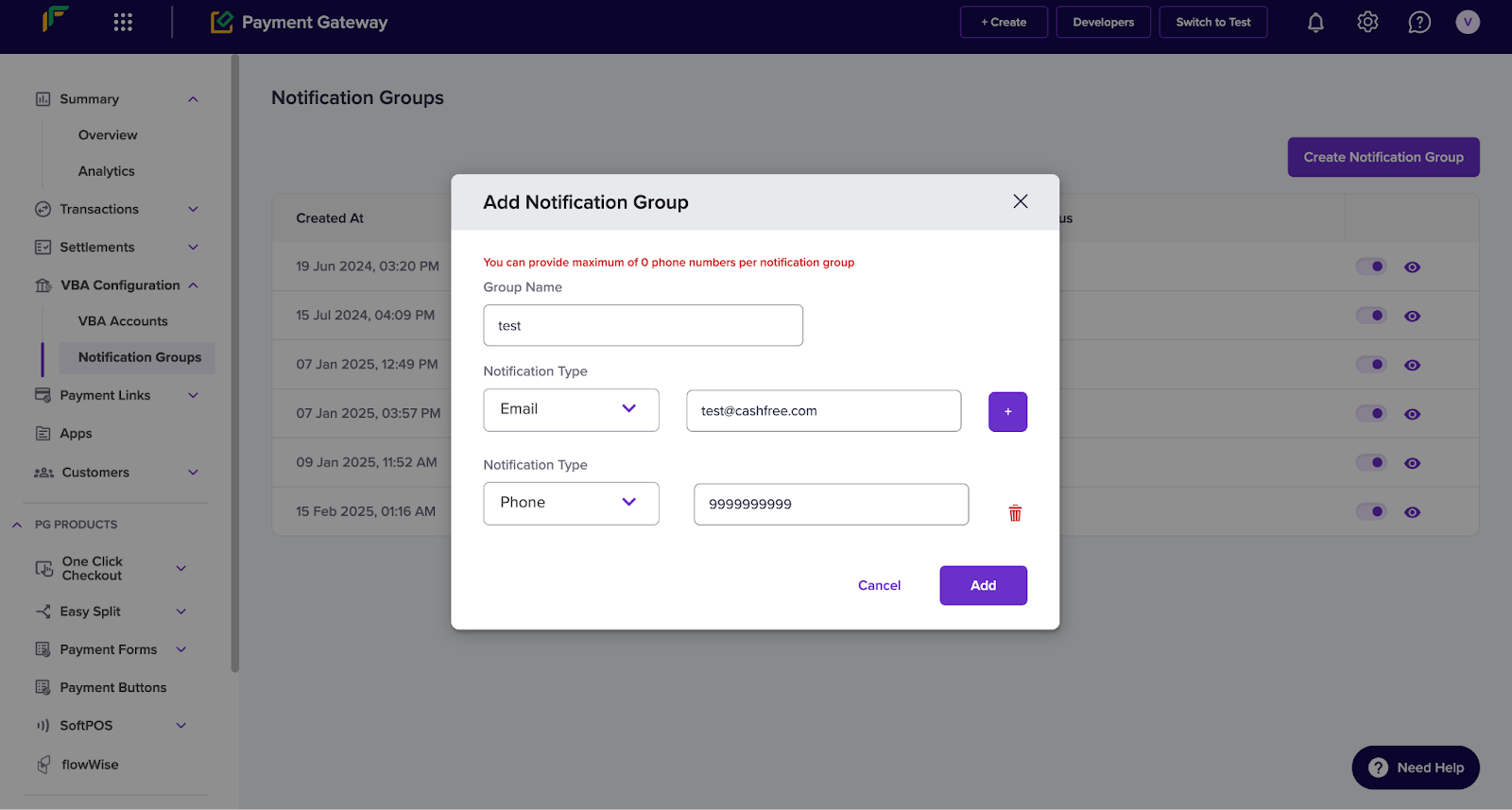
4. Click **Create Notification Group** to open the **Add Notification Group** modal.
5. In the modal, enter the following details:
* **Group Name:** Enter a name for the notification group.
* **Notification Type:** Select **Email** or **Phone**.
* **Plus (+) icon:** Click to add more notification types.
6. Click **Add** to create the notification group.
## Creating a notification group
To create a **notification group**:
1. Log in to the **[merchant dashboard](https://telr.cashfree.com/merchants)** using your credentials.
2. Click **Payment Gateway**.
3. Navigate to **VBA Configuration > Notification Groups**.
4. Click **Create Notification Group** to open the **Add Notification Group** modal.
5. In the modal, enter the following details:
* **Group Name:** Enter a name for the notification group.
* **Notification Type:** Select **Email** or **Phone**.
* **Plus (+) icon:** Click to add more notification types.
6. Click **Add** to create the notification group.
 ## FAQs
A Virtual Bank Account (VBA) is a unique, temporary bank account that helps businesses collect payments through NEFT, RTGS, and IMPS.
No. NPCI regulations do not allow UPI payments to Virtual Bank Accounts. These transactions fall under P2P (Person-to-Person) transfers, which do not work with VBAs.
Yes. The payment mode (IMPS, NEFT, or RTGS) determines the transaction limit. You can also set a minimum and maximum limit when you create a VBA to control payment amounts.
## FAQs
A Virtual Bank Account (VBA) is a unique, temporary bank account that helps businesses collect payments through NEFT, RTGS, and IMPS.
No. NPCI regulations do not allow UPI payments to Virtual Bank Accounts. These transactions fall under P2P (Person-to-Person) transfers, which do not work with VBAs.
Yes. The payment mode (IMPS, NEFT, or RTGS) determines the transaction limit. You can also set a minimum and maximum limit when you create a VBA to control payment amounts.