> ## Documentation Index
> Fetch the complete documentation index at: https://telr-docs.cashfree.com/llms.txt
> Use this file to discover all available pages before exploring further.
# Reports
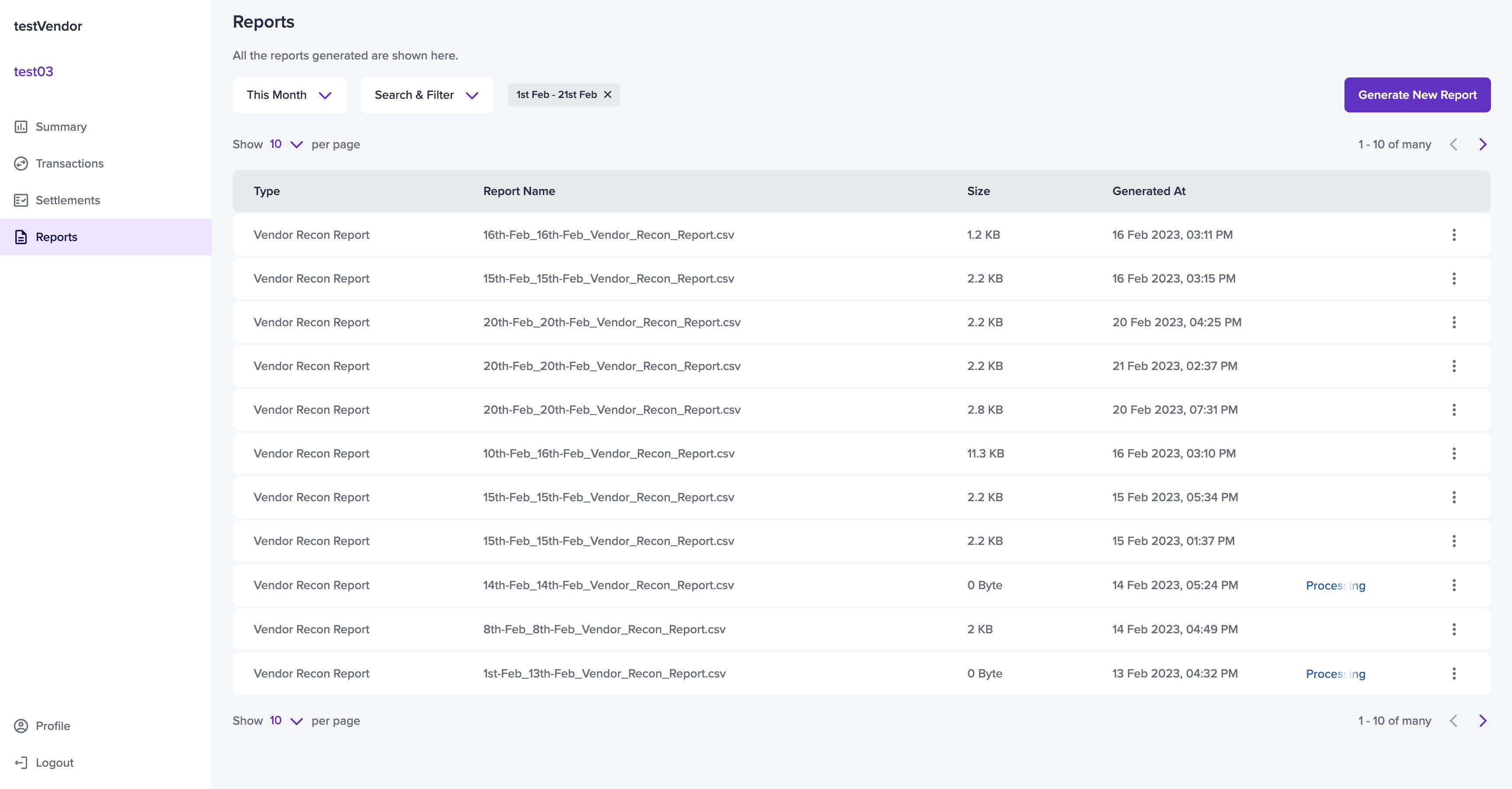
The reports section in the Vendor Dashboard allows vendors to view the vendor recon and settlement-specific report. The report section has details such as report name, report size, the report generated time, and generate a new report.
Select the date range from the drop-down menu. Use the **Search & Filter** option to view specific reports. The reports will be generated based on these selections. Vendors can configure two types of report filters:
* Vendor Reconciliation - vendors can view the reconciliation details of all vendors.
* Settlement Specific - vendors can view the reconciliation details that are specific to a settlement by specifying the settlement ID.
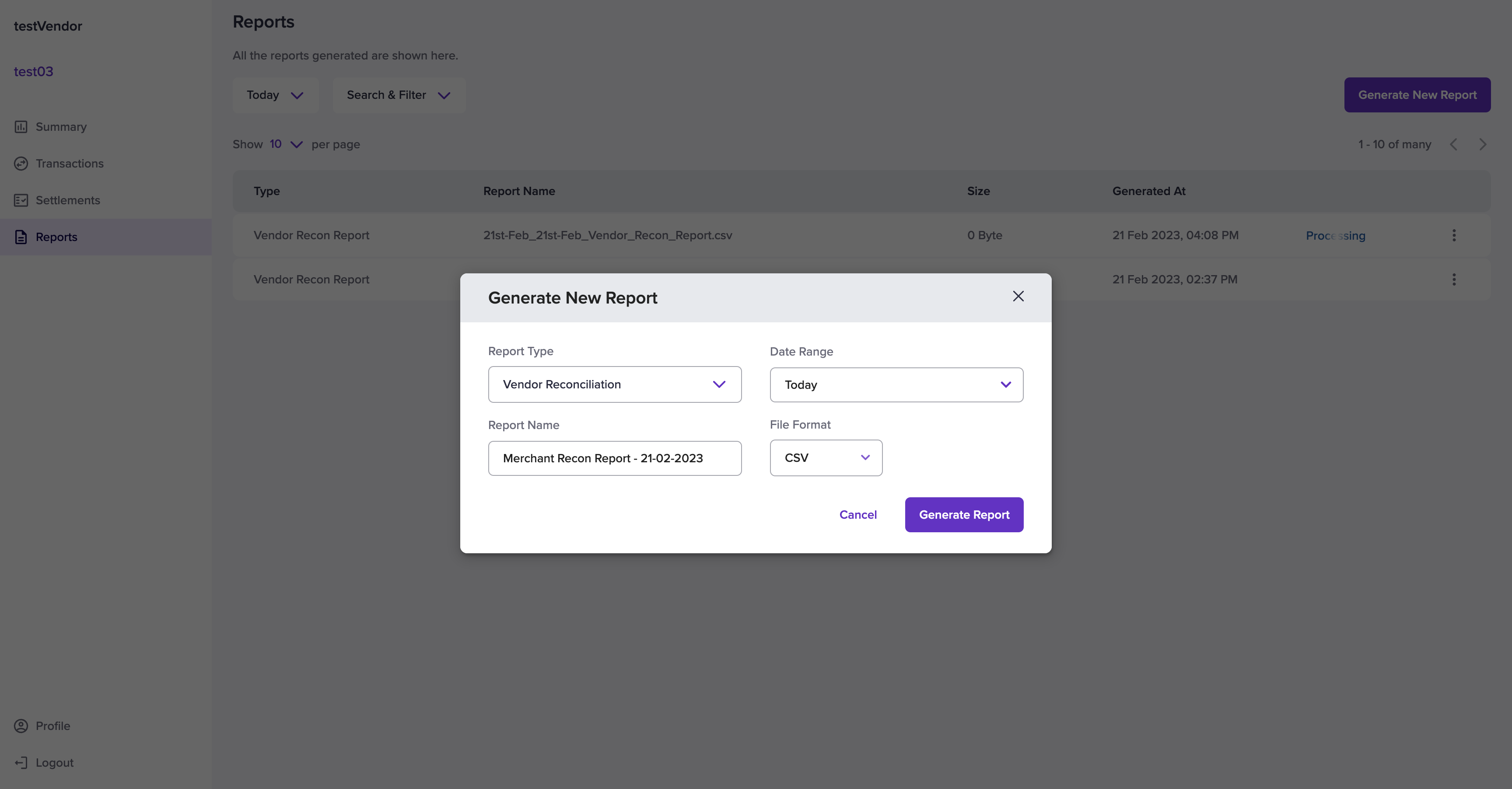
 To generate a new report,
1. Go to **Vendor Dashboard** > **Reports**.
2. In the Reports homepage, select the **Generate New Report** option.
3. Choose the **Report Type** and the **Date Range**. Provide a **Report Name** and select the **File Format**. Supported file formats are CSV and XLS.
4. If you are generating a settlement-specific report, provide the **settlement ID**.
5. Click **Generate Report**. The report is successfully generated and can be downloaded from the Report homepage.
To generate a new report,
1. Go to **Vendor Dashboard** > **Reports**.
2. In the Reports homepage, select the **Generate New Report** option.
3. Choose the **Report Type** and the **Date Range**. Provide a **Report Name** and select the **File Format**. Supported file formats are CSV and XLS.
4. If you are generating a settlement-specific report, provide the **settlement ID**.
5. Click **Generate Report**. The report is successfully generated and can be downloaded from the Report homepage.
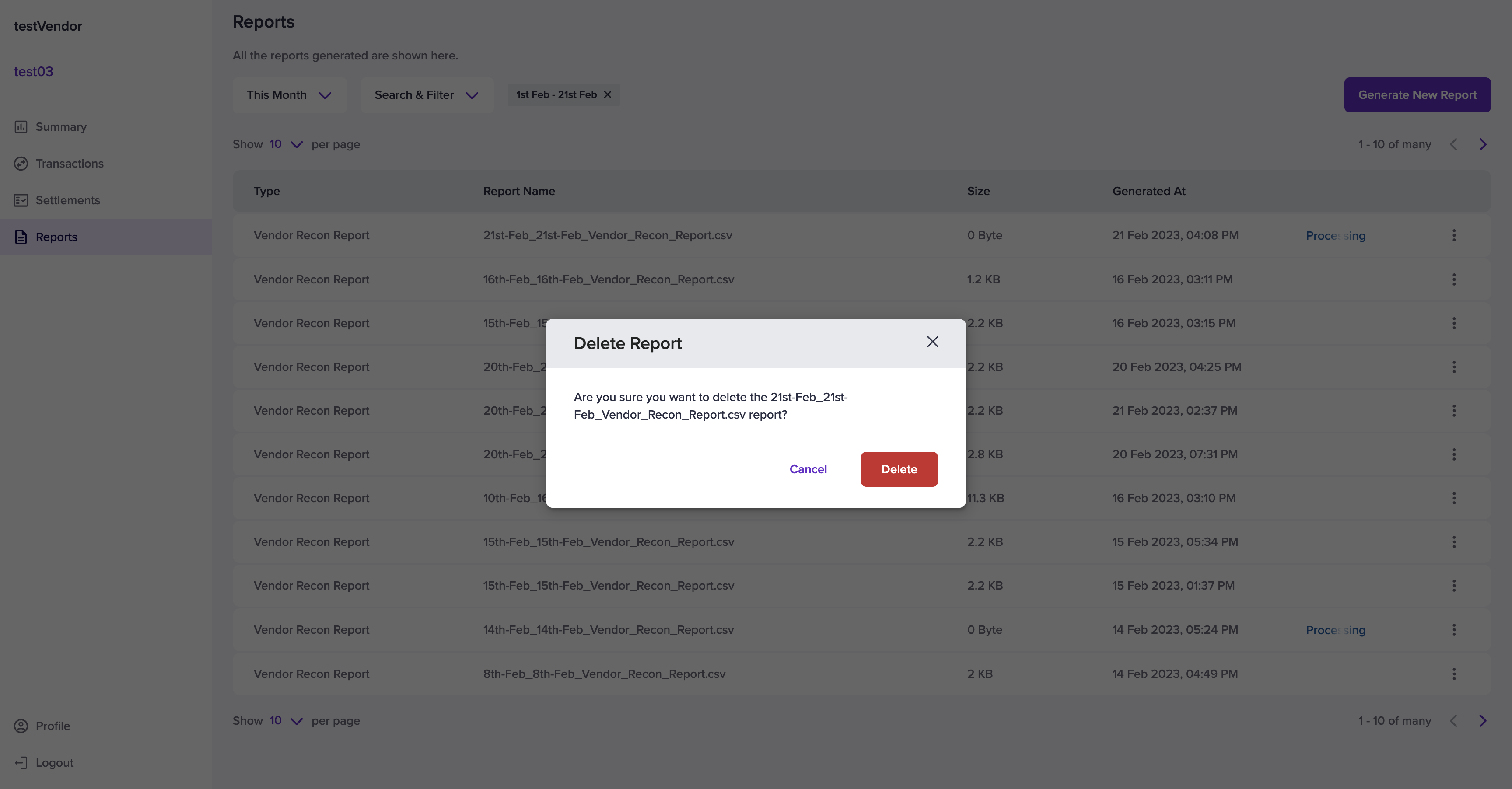
 You can delete a report by selecting the ellipsis icon on the report that should be deleted and select the **Delete** option. Click **Delete** from the Delete Report pop-up window.
 A sample report is available here.