> ## Documentation Index
> Fetch the complete documentation index at: https://telr-docs.cashfree.com/llms.txt
> Use this file to discover all available pages before exploring further.
# Adjust Vendor Balance
You can make credit and debit adjustments to the vendor account using the **Adjust Balance** feature in the product dashboard. You can also do the same using the [Transfer Vendor Balance](/api-reference/payments/latest/split/settlements/on-demand-transfer) API.
You can adjust balances in scenarios when,
* Refunds are not processed due to insufficient balance in the vendor's account, you can credit the vendor account to process the refund and later adjust the balance.
* The total amount is credited to your account, and you can later make credit adjustments to the vendor account.
* To manage differences in the vendor split percentages.
* If you want to discontinue business with a vendor you can make credit or debit adjustments to the vendor account before you delete the account.
To adjust vendor balance,
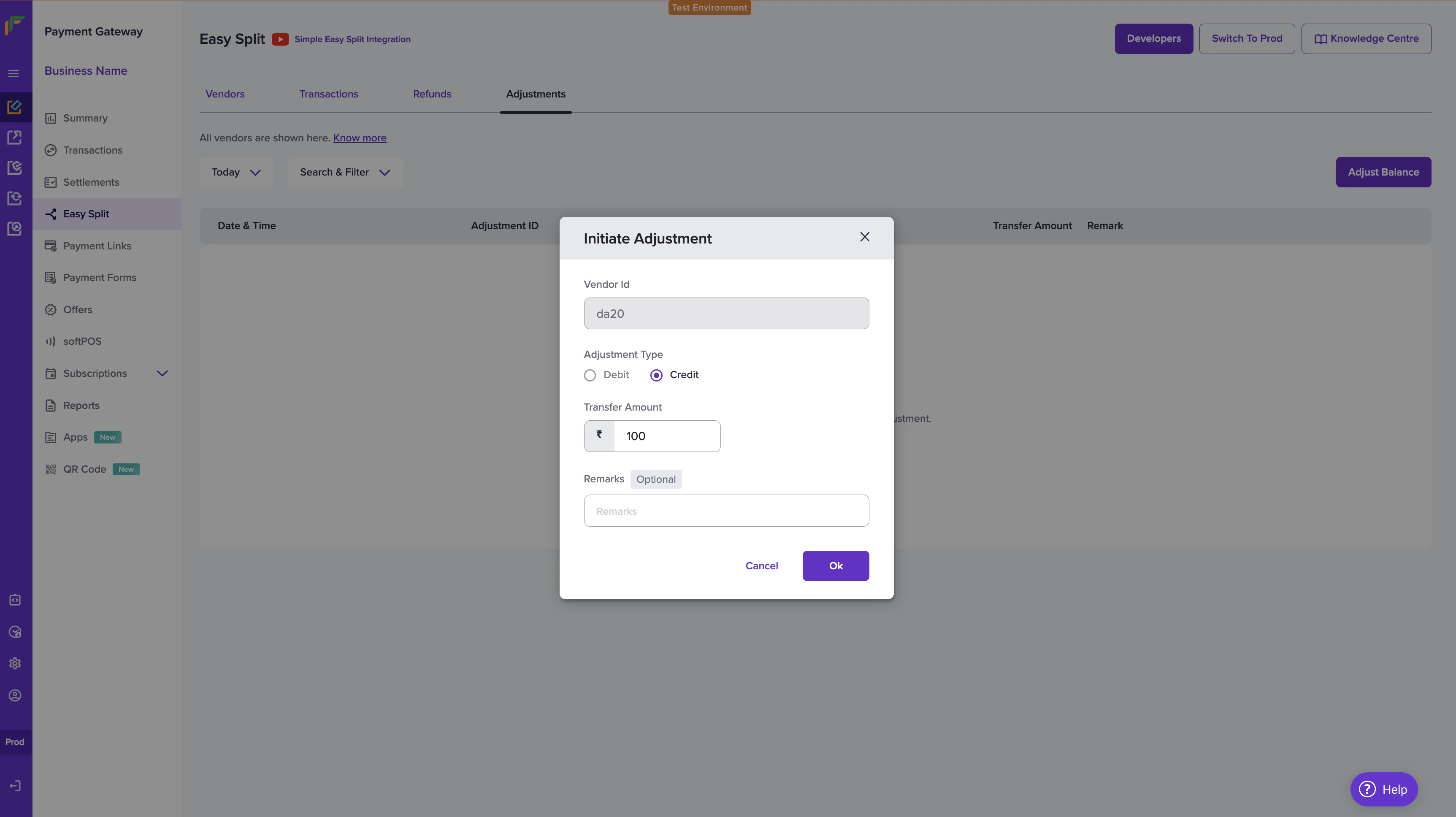
1. Go to **Payment Gateway Dashboard** > **Easy Split** > **Adjustments**. Click the **Adjust Balance** option.
2. From the Initiate Adjustments pop-up window, enter the **Vendor ID** you want to make adjustments to.
3. Select the **Adjustment Type** - **Debit** or **Credit**. Select **Debit** if you have to make a debit adjustment, and select credit if you have to make a credit adjustment to the vendor.
4. Enter the **Transfer Amount**, and provide **Remarks** if any. Once done, click **Ok** to initiate the adjustment.
 The transfer amount should be less than equal to the unsettled balance.