> ## Documentation Index
> Fetch the complete documentation index at: https://telr-docs.cashfree.com/llms.txt
> Use this file to discover all available pages before exploring further.
# Zoho Payment plugin
> Add Telr payments plugin to Zoho
We support the following Zoho apps: Books, Invoice, Checkout, Billing and
Inventory
To add Telr Payment Gateway to your Zoho books,
1. Log in to your Zoho books and click **Settings**.
2. In the Settings select **Online Payments**.
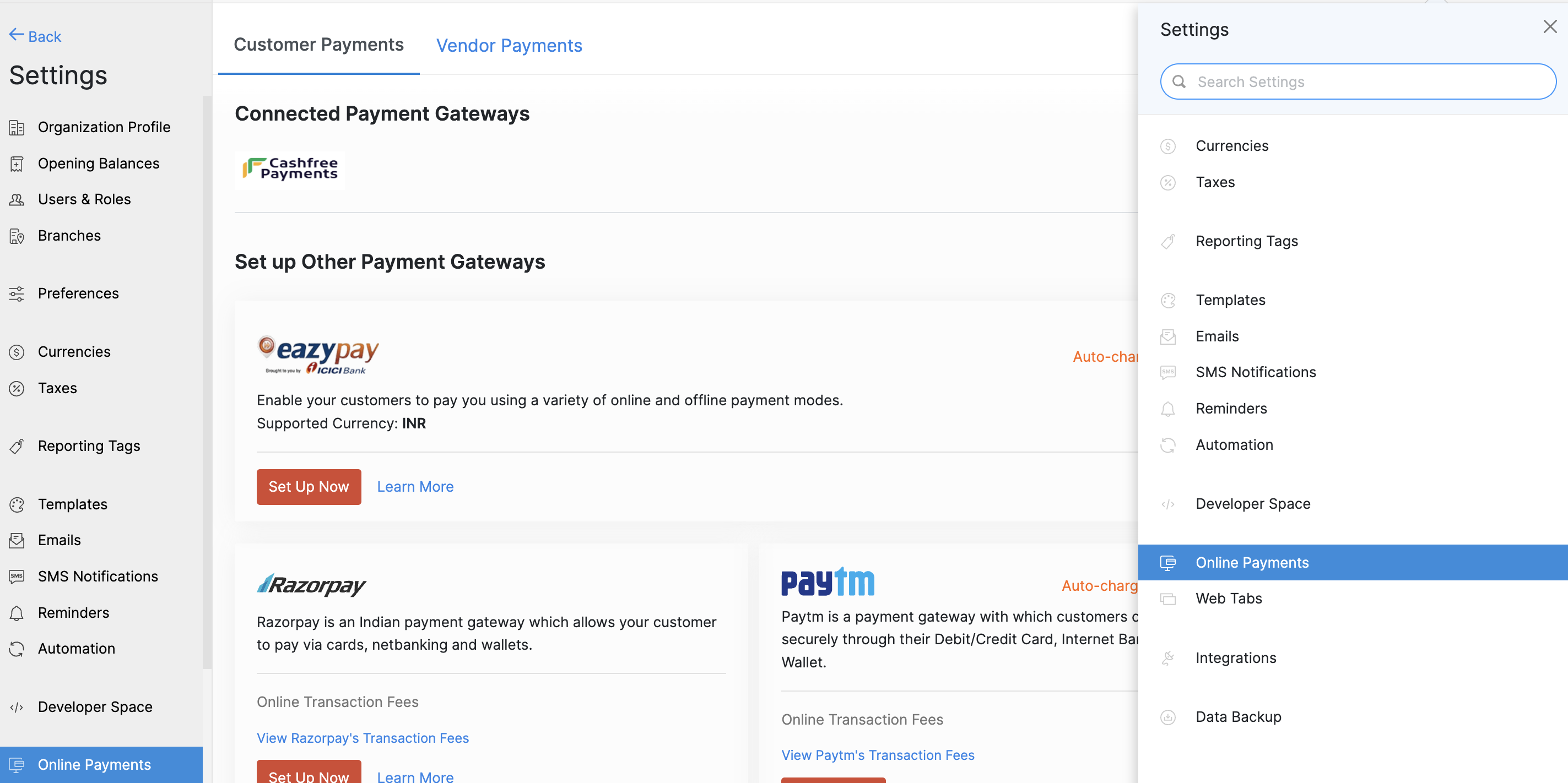 3. In the **Online Payments** screen, Select Telr and click **Set Up Now**.
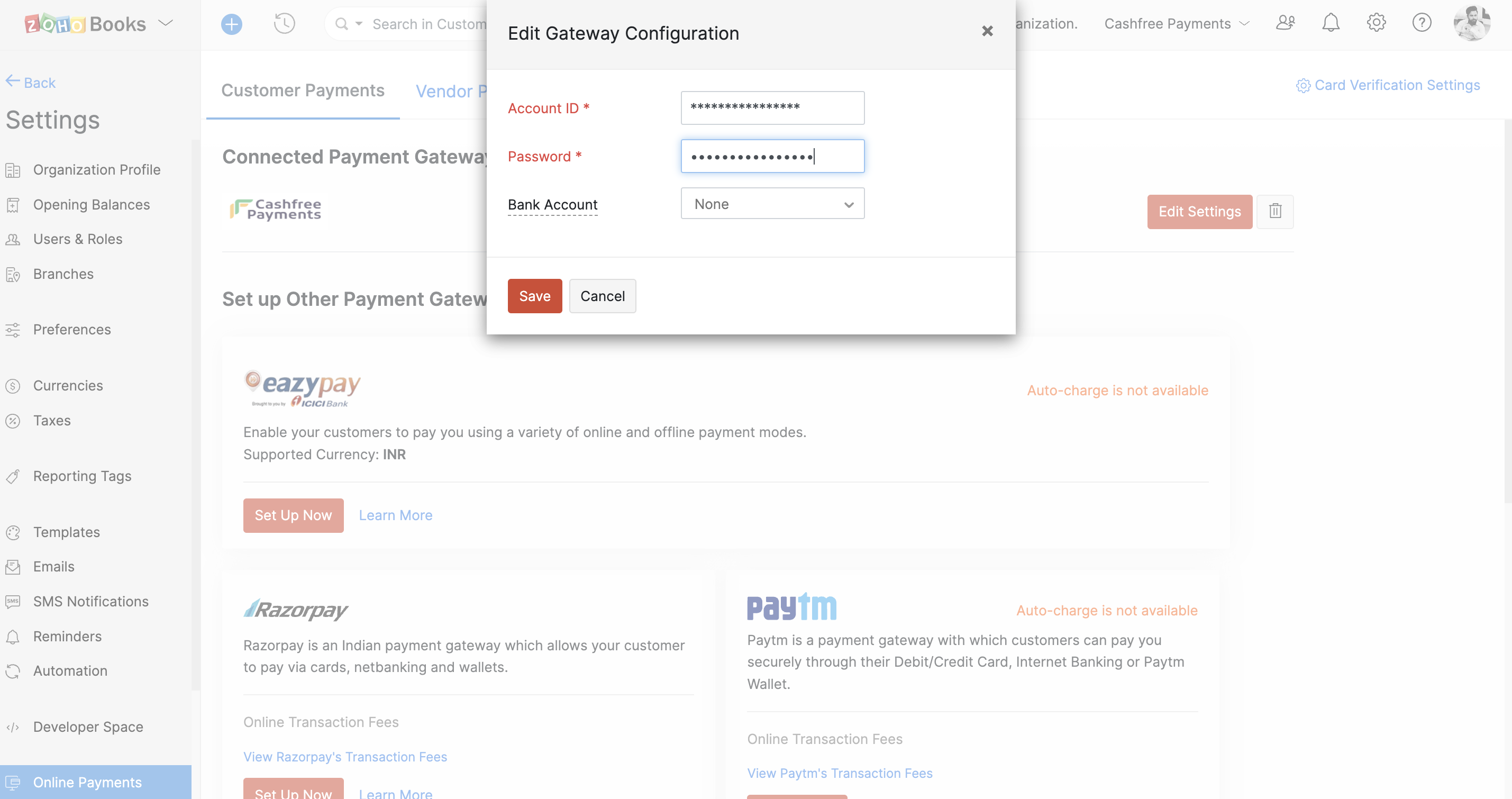
4. Enter the **App ID** and **Secret Key** of your Telr Account.
5. Click **Save** to integrate Telr with your Zoho Books.
3. In the **Online Payments** screen, Select Telr and click **Set Up Now**.
4. Enter the **App ID** and **Secret Key** of your Telr Account.
5. Click **Save** to integrate Telr with your Zoho Books.
 Your customers can start making payments using Telr Payment Gateway.
Read about [whitelisting your store url](/payments/online/go-live/whitelist)
before you can accept payments on your store.
Your customers can start making payments using Telr Payment Gateway.
Read about [whitelisting your store url](/payments/online/go-live/whitelist)
before you can accept payments on your store.