> ## Documentation Index
> Fetch the complete documentation index at: https://telr-docs.cashfree.com/llms.txt
> Use this file to discover all available pages before exploring further.
# Prestashop Payment plugin
> Add Telr payments plugin to your Prestashop store
Read about [whitelisting your store url](/payments/online/go-live/whitelist) before you can accept payments on your woocommerce store.
Currently, we support the following PrestaShop versions:
* PrestaShop 1.7x
* PrestaShop 1.5x and 1.6x
## To install the plugin
1. Log in to your PrestaShop Admin Dashboard and click **Modules** on the left side menu.
2. Click **Module Manager** > **upload a module**.
3. Select the module file to upload. Ensure the file format is as per the guidelines. On successful upload, a screen appears as shown below, and the module is successfully installed.
4. After successful installation, click **Configure** to set up the module configuration.
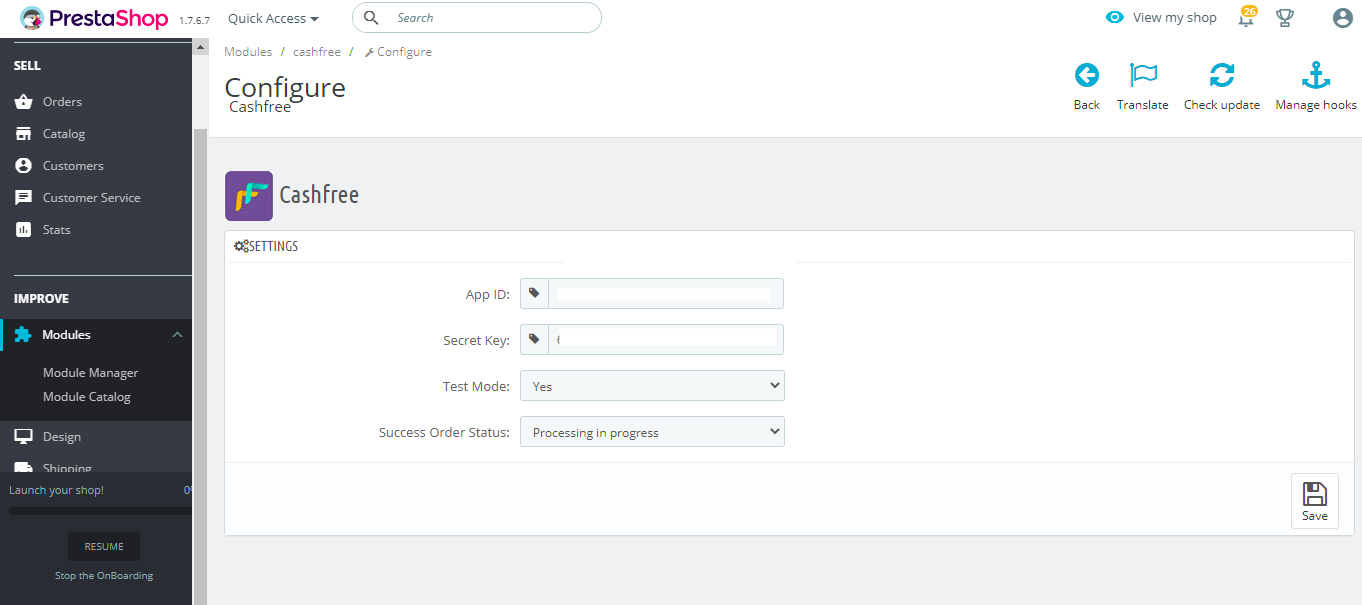
5. In the Configure screen:\
a. Enter your Telr Payment Gateway **App Id** and **Secret Key**.\
b. Select the **Test Mode** as **Yes** for\*\* Test Environment\*\* and **No** for **Production Environment**.\
c. Select the **Success Order Status** as **Processing in progress**.
6. Click **Save** to save the module configuration. The **Configure** screen appears as shown below.
 Read about [whitelisting your store url](/payments/online/go-live/whitelist) before you can accept payments on your woocommerce store.