> ## Documentation Index
> Fetch the complete documentation index at: https://telr-docs.cashfree.com/llms.txt
> Use this file to discover all available pages before exploring further.
# Troubleshooting
> This guide helps you troubleshoot common webhook issues on the Cashfree [merchant dashboard](https://telr.cashfree.com/merchants).
## Webhook did not trigger
If a webhook does not trigger for the specified endpoint:
1. Login to the [merchant dashboard](https://telr.cashfree.com/merchants) using your credentials.
2. Navigate to **Developer > Webhooks** under Payment Gateway, and select the **Logs** tab to check for failures and take necessary action.
Common reasons for webhook failure are:
* The endpoint returns a **500 error** or does not respond.
* The required event is not configured in the webhook settings.
3. Click **Batch Resend** to resend missed webhook events.
4. Select the batch source and enter entity IDs in the Batch Resend modal.
5. Click **Resend**. Refer to the screenshot below:
 ## Cannot add a payment gateway webhook
To add a webhook endpoint URL:
1. **Login** to the [merchant dashboard](https://telr.cashfree.com/merchants) using your credentials.
2. Navigate to **Developer > Webhooks** under Payment Gateway, and select **Add Webhook Endpoint** in the **Configuration** tab.
3. Add the following details in the **Add Webhook Endpoint** modal:
* **Endpoint Details**: Enter the endpoint URL for the webhook and select the latest webhook version from the drop-down list.
**Note**:
When you add the endpoint URL, Telr sends a test `POST` request to check if it is valid and responsive. If the endpoint does not respond, select **Continue** and manually choose the required events.
* **Add Policy**: Customise the retry policy and select the webhook events you want to subscribe to.
* **Summary**: Review and confirm your selections.
4. Select **Save** to complete the setup. Refer to the screenshot below:
## Cannot add a payment gateway webhook
To add a webhook endpoint URL:
1. **Login** to the [merchant dashboard](https://telr.cashfree.com/merchants) using your credentials.
2. Navigate to **Developer > Webhooks** under Payment Gateway, and select **Add Webhook Endpoint** in the **Configuration** tab.
3. Add the following details in the **Add Webhook Endpoint** modal:
* **Endpoint Details**: Enter the endpoint URL for the webhook and select the latest webhook version from the drop-down list.
**Note**:
When you add the endpoint URL, Telr sends a test `POST` request to check if it is valid and responsive. If the endpoint does not respond, select **Continue** and manually choose the required events.
* **Add Policy**: Customise the retry policy and select the webhook events you want to subscribe to.
* **Summary**: Review and confirm your selections.
4. Select **Save** to complete the setup. Refer to the screenshot below:
 ## Receiving duplicate webhook events
If you receive duplicate webhook events, check for the following issues:
* **Multiple subscriptions to the same event**
* You may have subscribed to the same event multiple times across different webhook versions or for different URLs.
* Check each URL configuration and remove duplicate subscriptions.
* **Retries due to downtime**
* If Telr or your server experiences downtime, Telr retries webhook deliveries to ensure event completion.
* **Prevent duplicate processing**
* Validate the **x-idempotency-header** in the webhook header.
* This header contains a unique hashed value for each webhook payload.
* Webhook versions from **2025-01-01** support this feature.
* To upgrade, see the [Webhook Migration](/payments/online/webhooks/overview#webhook-migration) section.
## Configure webhooks for non-payment gateway products
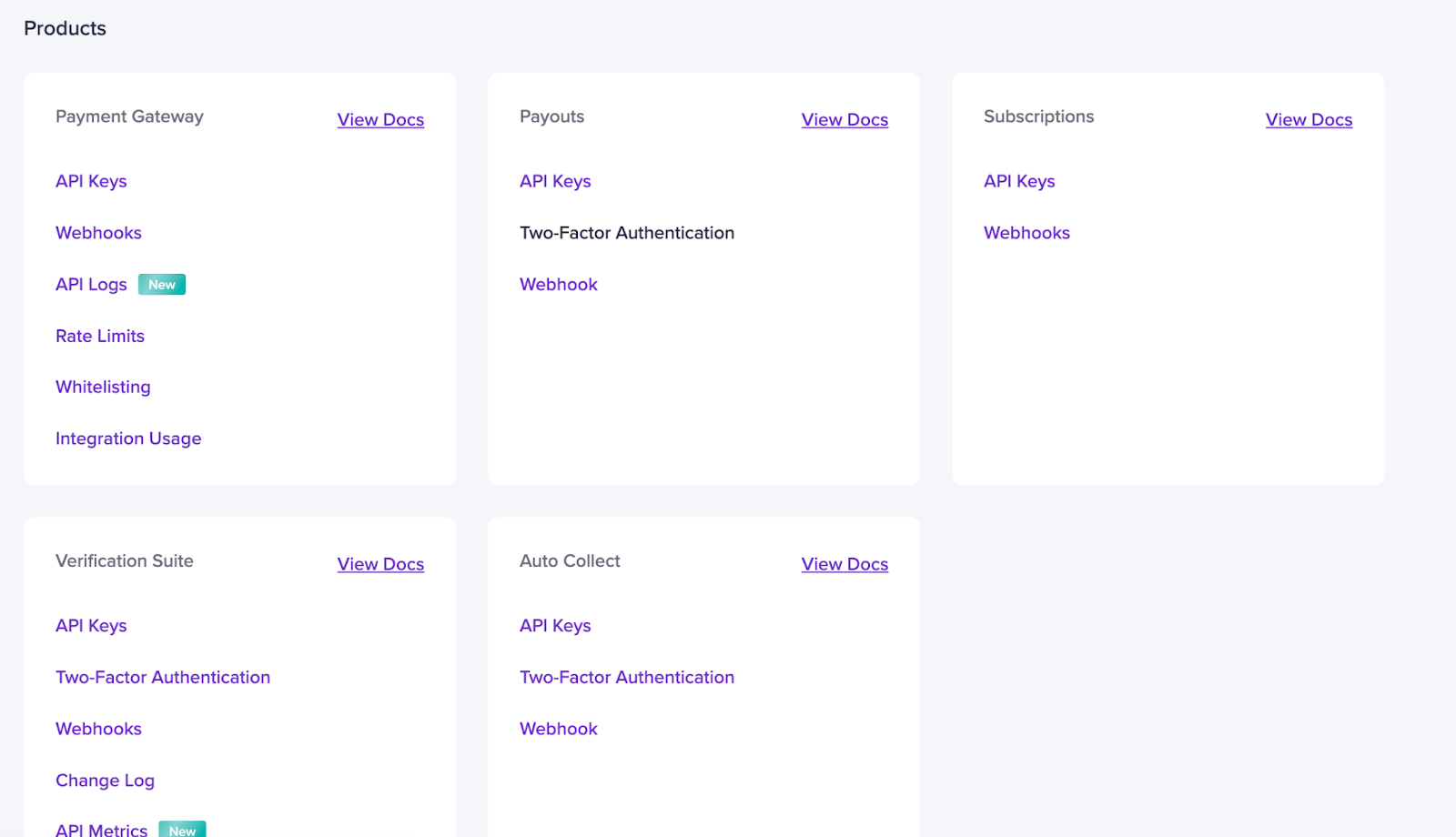
To configure webhooks for products such as **Payouts, Subscriptions, Payments, Payment Links, or Secure ID**, go to the respective product webhook section on the [merchant dashboard](https://telr.cashfree.com/merchants) and add the required webhook endpoint URL.
## Receiving duplicate webhook events
If you receive duplicate webhook events, check for the following issues:
* **Multiple subscriptions to the same event**
* You may have subscribed to the same event multiple times across different webhook versions or for different URLs.
* Check each URL configuration and remove duplicate subscriptions.
* **Retries due to downtime**
* If Telr or your server experiences downtime, Telr retries webhook deliveries to ensure event completion.
* **Prevent duplicate processing**
* Validate the **x-idempotency-header** in the webhook header.
* This header contains a unique hashed value for each webhook payload.
* Webhook versions from **2025-01-01** support this feature.
* To upgrade, see the [Webhook Migration](/payments/online/webhooks/overview#webhook-migration) section.
## Configure webhooks for non-payment gateway products
To configure webhooks for products such as **Payouts, Subscriptions, Payments, Payment Links, or Secure ID**, go to the respective product webhook section on the [merchant dashboard](https://telr.cashfree.com/merchants) and add the required webhook endpoint URL.