> ## Documentation Index
> Fetch the complete documentation index at: https://telr-docs.cashfree.com/llms.txt
> Use this file to discover all available pages before exploring further.
# Authentication
> Authentication Telr Payments APIs
Almosst all Telr APIs require authentication. There are some exceptions like the `/order/sessions` Payments API.
Each Telr product requires its own unique client ID and client secret. For
example, if you are using both the Payments API and the Payouts API, you must
generate separate credentials for each. This means one set of keys for the
Payments API and a different set of keys for the Payouts API.
## Merchant Authentication
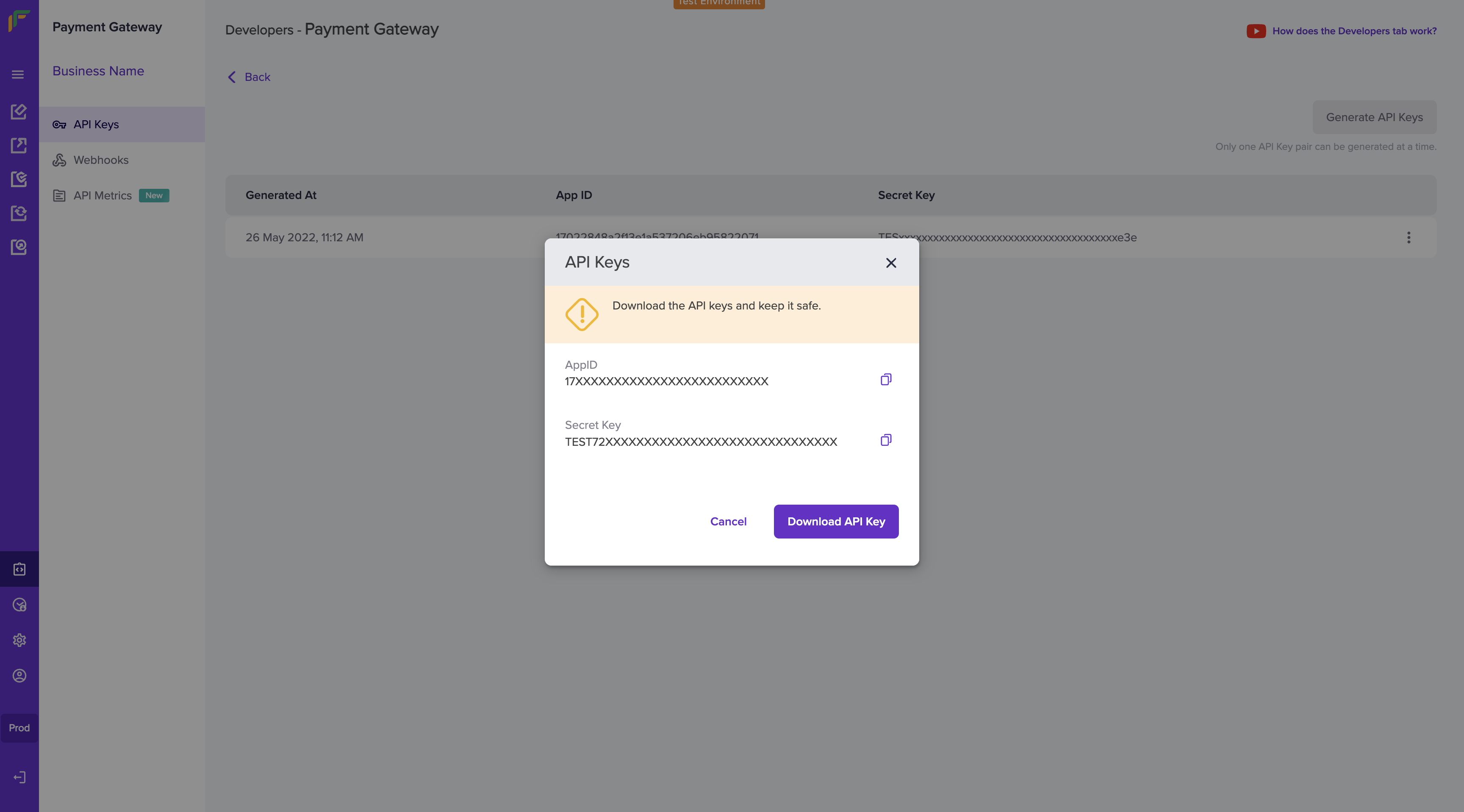
* The standard authentication for merchants uses two specific headers `x-client-id` and `x-client-secret`. Please pass your `appId` and `secretKey` in these fields. (see the screenshot below to access these from the dashboard).
* Please ensure that your secret key is securely placed and cannot be accessed by anyone.
* Also never call any API which requires authentication from the client as that would require you to expose the secret key to the client.
Below is a curl request which shows how to send these headers in the API call.
```bash theme={null}
curl --request {REQUEST-TYPE} \
--url https://sandbox.cashfree.com/pg/{resource} \
--header 'Content-Type: application/json' \
--header 'x-api-version: 2023-08-01' \
--header 'x-client-id: ' \
--header 'x-client-secret: '
...
...
```
## Generate API Keys
Each Telr product requires its own unique client ID and client secret. For example, if you are using both the Payments API and the Payouts API, you must generate separate credentials for each. This means one set of keys for the Payments API and a different set of keys for the Payouts API.
Follow the below steps to generate your API key for Payment Gateway.
1. Go to **Payment Gateway Dashboard** > and click on **Developers** icon in the right navigation or click **Developers** on the top right of the [merchant dashboard](https://telr.cashfree.com/merchants) .
2. Click **API Keys** under Payment Gateway.\
In the test environment, API keys will be auto-generated. In the production environment, click **Generate API Keys** and complete the 2FA authentication to generate the keys.
3. Once generated, the API keys are shown in a masked format. To view the full set of keys, click the icon and select **View API Key**. In the production environment, you would be required to do 2FA authentication to view the keys. You must securely store your api keys at all times.
 You can only generate a single API key pair at a time. Once you generate the
keys from the dashboard, keep them secure. If it is lost, you need to
re-generate them from the dashboard.
## Partner Authentication
If you are building a platform and want to use the Payment APIs on behalf of your customers you can do so using by leveraging authentication for platforms. You should use the **x-partner-apikey** and **x-partner-merchantid** headers instead of the **x-client-id** and **x-client-secret** headers.
* **x-partner-apikey**: This is the common API Key generated and unique for each Partner
* **x-partner-merchantid**: This is the unique merchant ID for each merchant associated with the Partner.\
The view the merchant ID for each merchant, login to your Telr Partner Dashboard with your partner login credentials > go to the **Merchants** section, and copy the **Merchant ID** of the respective merchant.
Click [here](/partners/embedded/integration/gateway-integration#partner-api-keys) to know how to generate partner authentication keys.
You can only generate a single API key pair at a time. Once you generate the
keys from the dashboard, keep them secure. If it is lost, you need to
re-generate them from the dashboard.
## Partner Authentication
If you are building a platform and want to use the Payment APIs on behalf of your customers you can do so using by leveraging authentication for platforms. You should use the **x-partner-apikey** and **x-partner-merchantid** headers instead of the **x-client-id** and **x-client-secret** headers.
* **x-partner-apikey**: This is the common API Key generated and unique for each Partner
* **x-partner-merchantid**: This is the unique merchant ID for each merchant associated with the Partner.\
The view the merchant ID for each merchant, login to your Telr Partner Dashboard with your partner login credentials > go to the **Merchants** section, and copy the **Merchant ID** of the respective merchant.
Click [here](/partners/embedded/integration/gateway-integration#partner-api-keys) to know how to generate partner authentication keys.